
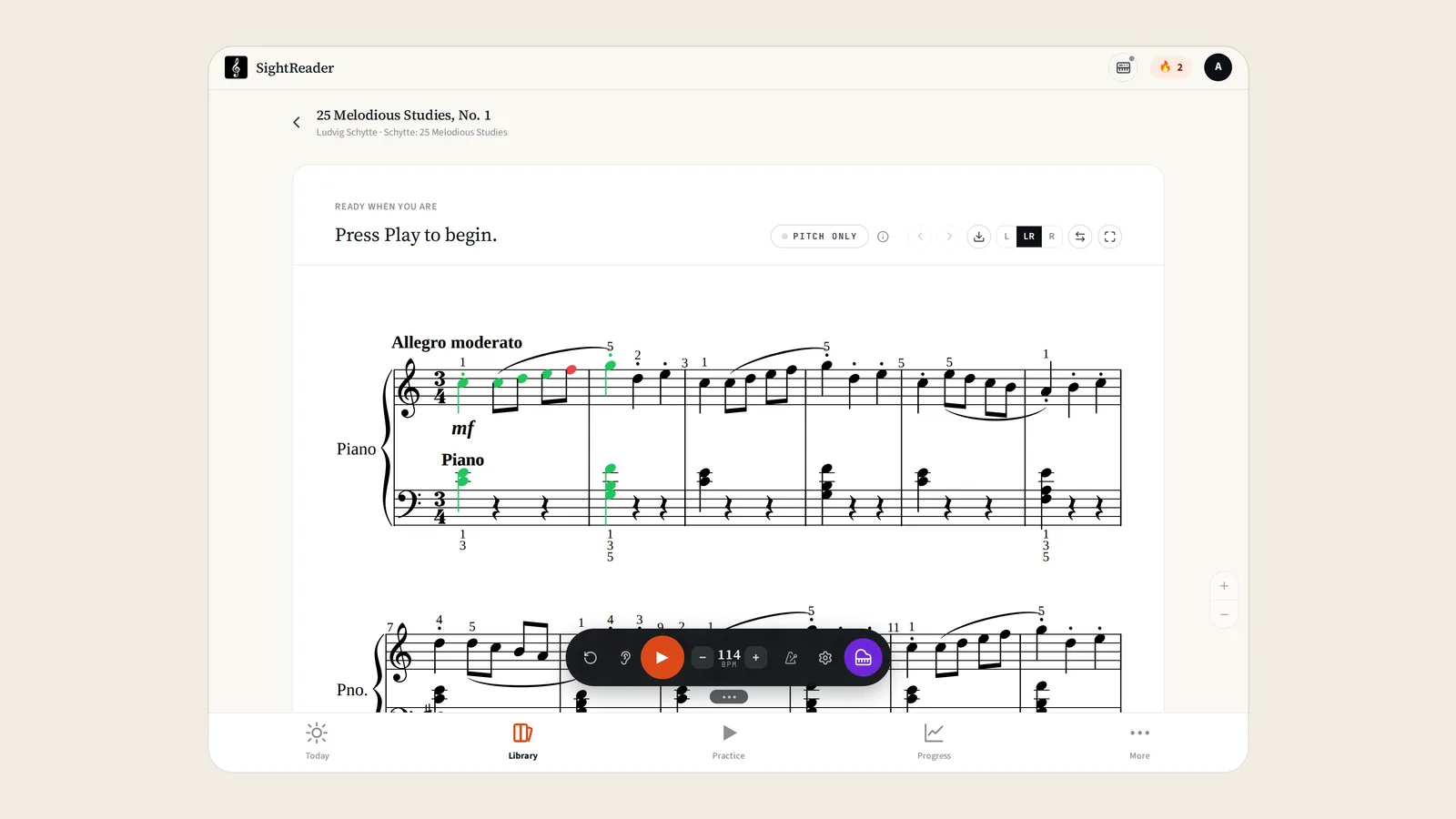
The last month has been big for SightReader. We’ve launched several large features, as well as our iOS and Android apps. In this post, I’ll give a quick overview of what’s landed.
Apps for mobile and tablet
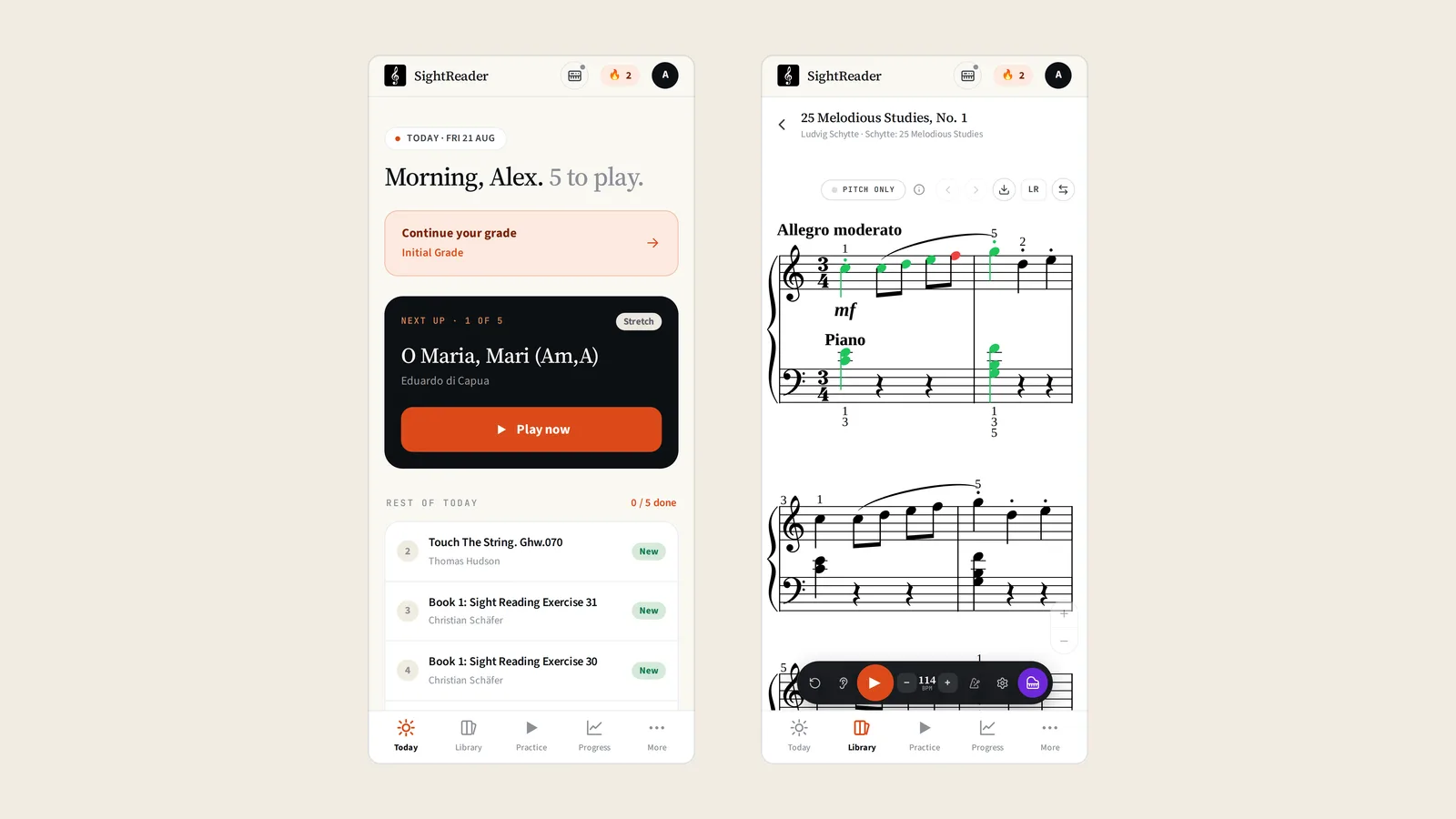
SightReader began as a browser tool, but as musicians ourselves, we know that a tablet is a go-to choice and works really well with a piano. It sits on the music desk, it doesn’t need a table, and nobody has to move a laptop out of the way to play.
I also felt that mobile offers a huge amount of convenience, but I don’t know of any sheet music apps that have really cracked the mobile experience. I’m really proud of what we’ve achieved with the SightReader apps, because I think that mobile works really well. It means you can practise on the fly, or, if you don’t have a tablet, you don’t need to invest in one to use SightReader effectively.
There’s one more reason the apps matter on Apple devices in particular. No browser on iPhone or iPad can talk to a MIDI keyboard. That goes for Safari, and for Chrome, Edge and Firefox too, because Apple requires them all to use Safari’s engine. So on an iPad, the app is more than a nicer wrapper: it’s the only way to have your playing marked note by note. Android has had this in the browser for years, and now has an app too.
Both are free to download and everything you already have carries over: the same account, the same progress, the same library. You can read about the app launch in the announcement post, or go straight to the App Store or Google Play.
Rhythm testing
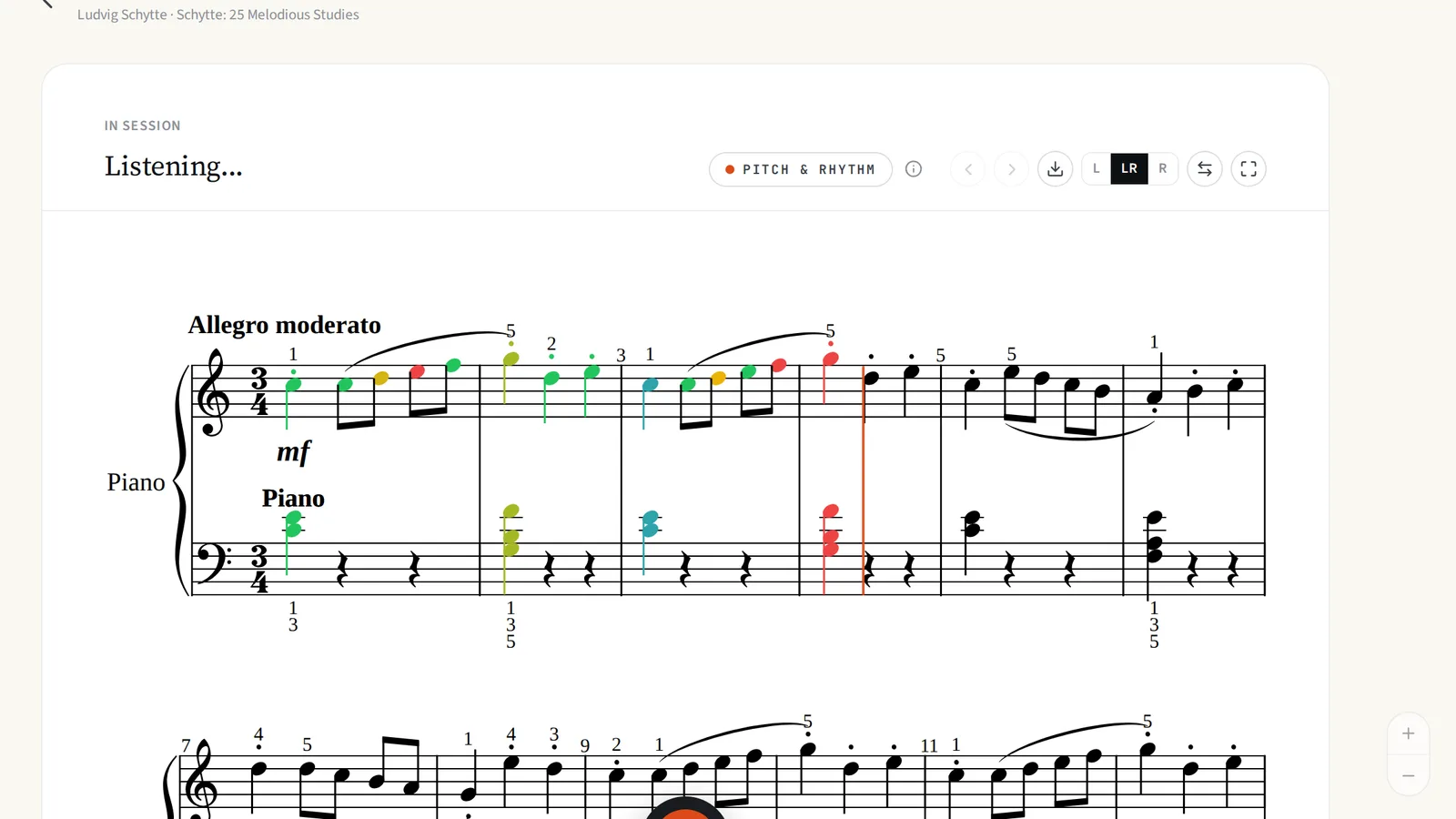
The most significant feature launch this month was Pitch & Rhythm mode. To our knowledge, SightReader is the only app on the market that can test rhythm as well as pitch, and we’re really excited for you all to try it.
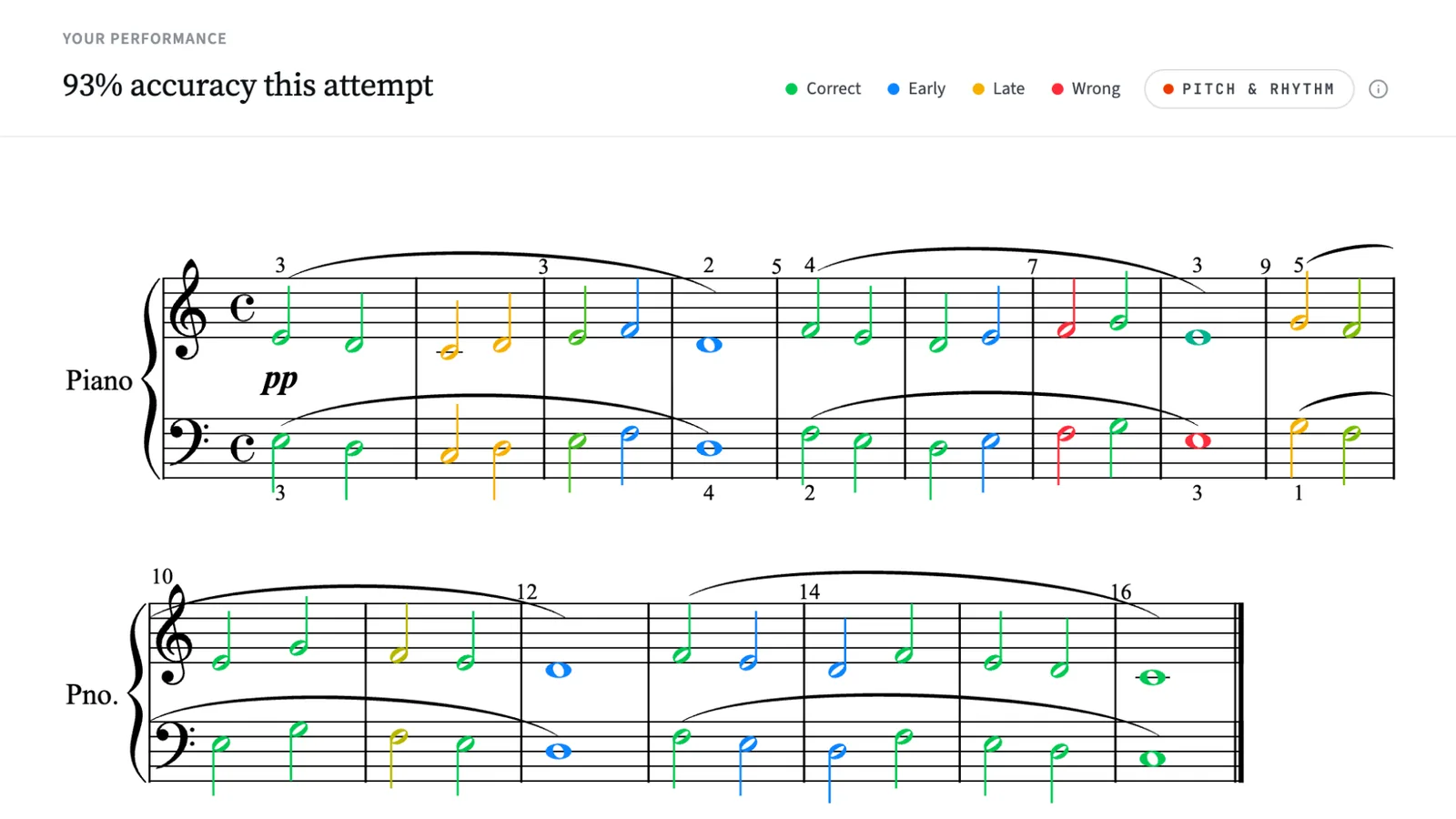
To enter this mode, hit the metronome icon or click the “mode” pill at the top of any score. You get a bar of count-in, and then the music moves at the beat, with or without you, the way it does when a teacher counts you along. Every note is then marked against the beat you can hear: green if you were on it, blue if you were early, yellow if you were late, and red if the beat moved on without you. You don’t have to go back and fix anything. Jump in wherever the beat is now, and SightReader follows you.
At the end you get a rhythm breakdown alongside your accuracy, including your average tendency (“94ms early on average”, say). That number is a useful tell: consistently early usually means rushing, consistently late usually means reading each note before trusting your hands.
One tip I’d give anyone trying it: turn the tempo down. Playing in time doesn’t mean playing fast, and staying honest at 60 beats per minute is worth far more than scrambling at 100. For a full rundown, see the dedicated post.
Endless practice in Exercises
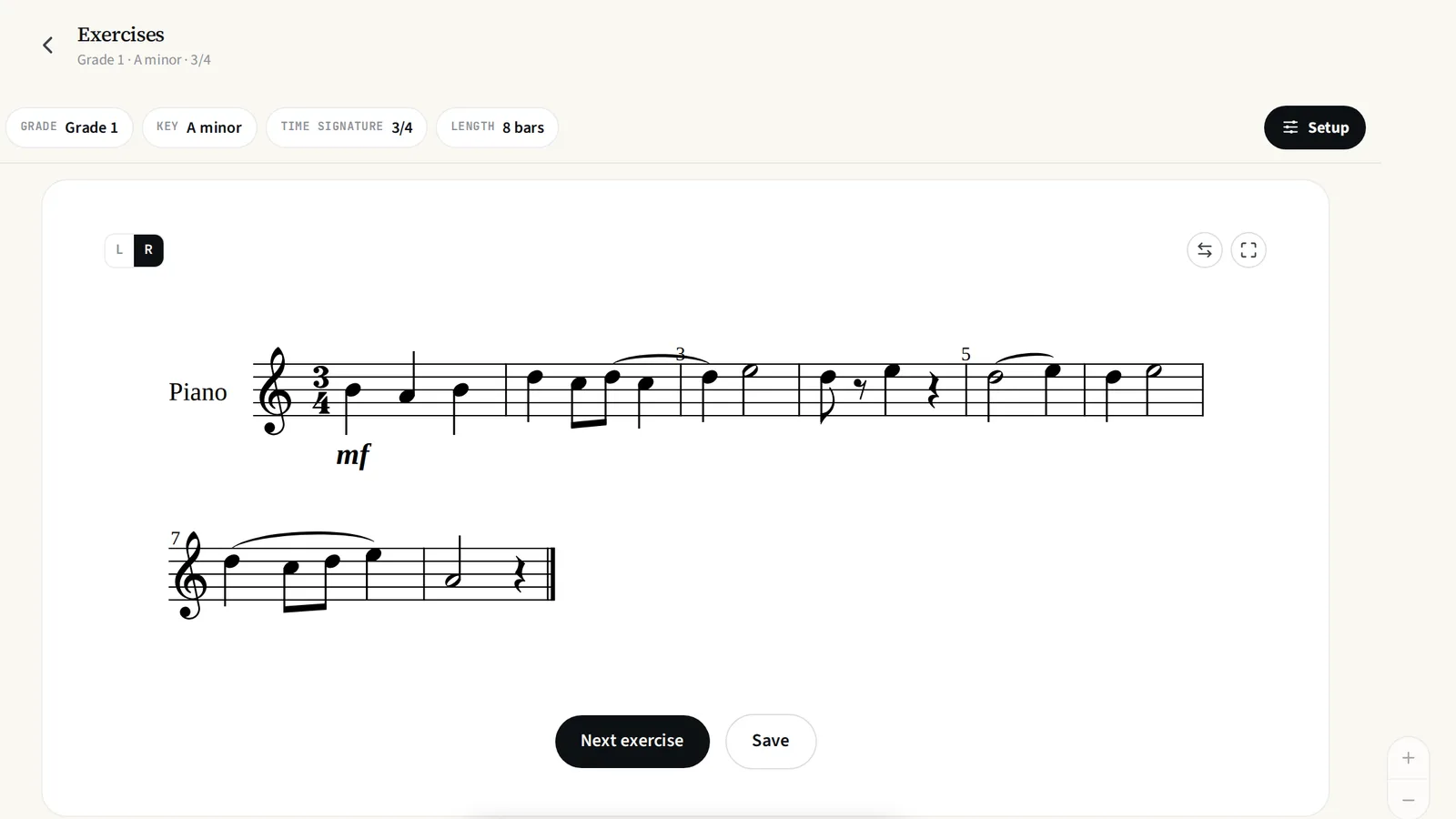
While the library is great for learning with real pieces, and grades offer a more linear approach to learning, sometimes you just want to get straight into playing. The new Exercises mode fills that gap: it generates pieces on the fly, pitched at your level. You don’t need to worry about choosing anything, and can focus on practising.
If you do want to choose, it’s all there: the ABRSM grade from Initial through to Grade 8, the key, the time signature, one hand or two, and how long you want it. Pro accounts can also point the generator at a specific weakness: chords in the right hand, dotted rhythms, accidentals, syncopation, a walking bass line. Every exercise is marked as you play it, like a piece from the library, and if one turns out to be worth coming back to you can save it. Saved exercises earn stars and count towards your progress like anything else. Teachers can set one as homework, too.
The reason this matters more than it might sound: the single best way to get better at sight-reading is to read something you’ve never seen before. That’s a supply problem, and this solves it.
Coming soon: microphone mode
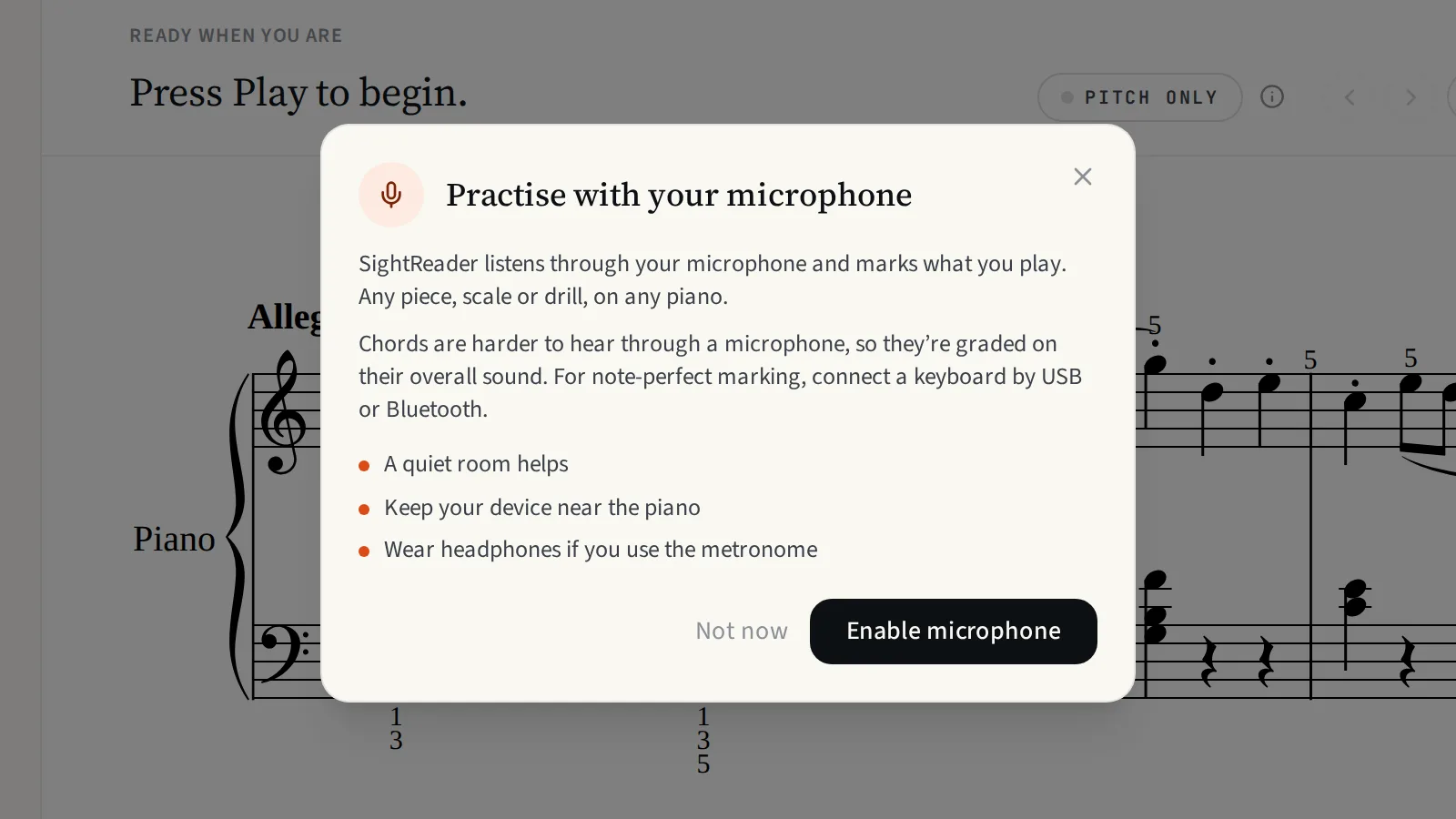
Initially, I was keen to avoid adding microphone mode, as computers aren’t particularly good at listening to polyphonic sound and working out which notes have been played. And that’s true: there are real limitations to this approach, which I even wrote a whole blog post about.
However, I want SightReader to be accessible to people who may not have a MIDI keyboard, or who want to try the app before investing in one.
After a lot of experimentation, we’ve ended up with a microphone mode that is surprisingly effective at marking the music you’re playing. It’s not perfect, and it never will be. It wants a quiet room, chords are graded on their overall sound rather than note by note, and it makes mistakes. Timing is the one thing it can’t do: Pitch & Rhythm mode still needs a keyboard connection, because a microphone can’t hear your timing precisely enough to grade it fairly.
But we were able to get much better results than we initially expected, and it’s a great way to get started with SightReader, or to practise when you’re away from your usual MIDI-friendly setup. It’s in testing now and will go out to everyone shortly.
Update, September 2026: microphone mode is now live for everyone. What it does, and where its limits are, is covered in why do sight-reading apps need a MIDI keyboard?.
Other improvements
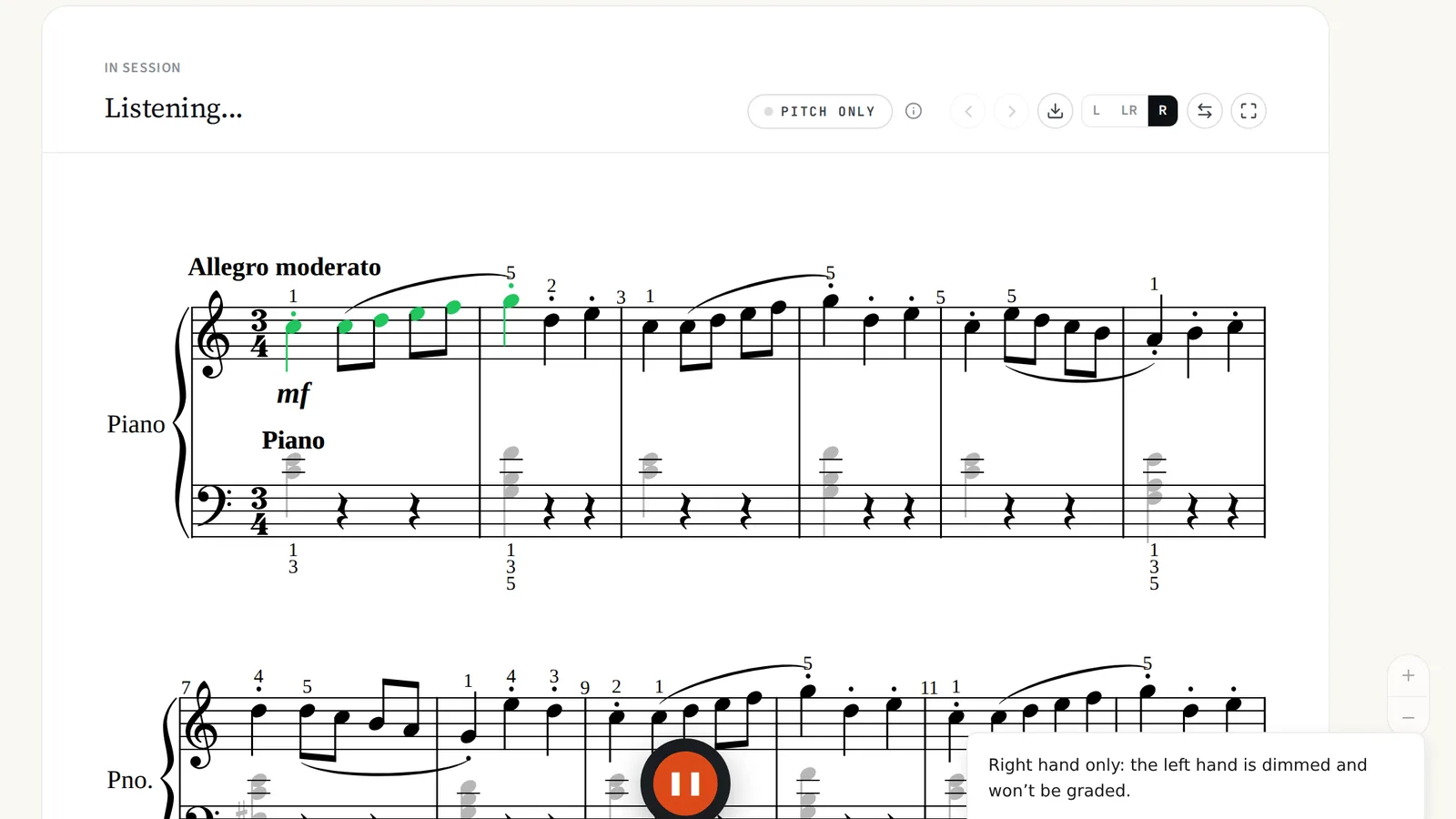
There’s almost too much to mention in a single blog post. This month also brought a way to practise hands separately. Pick one hand and only that hand is scored, while the other stays on the page, greyed, so you keep reading the whole texture. It’s how most teachers ask you to learn a piece, and now the app agrees.
Alongside that: a horizontal mode that lays the music out as one line and scrolls it sideways, a full-screen view, and the ability to zoom the score in and out (pinch on a touch screen, ⌘ or ctrl and scroll on a computer, double-tap to go back to normal) so the notes are the size you need on a phone at arm’s length or a monitor across the room. There’s a settings panel behind the cog while you play, the scale and note drills now count towards your XP and streak, and there’s a fanfare when you finish something. The full list lives on the changelog.
Conclusion
It’s been a busy month, but we’ve loved receiving positive feedback, as well as the occasional bug report or MIDI connection query. It all helps to make SightReader better for everyone, and I’d encourage you to reach out to us with any thoughts, positive or negative, at [email protected].
If you have trouble connecting a keyboard, the fastest way to get it sorted is to send us a report from sightreader.app/help/midi. It collects what we need to see to work out what’s going on.
— Bret